
AI Camera Angle Changer
Change the camera angle of a photo with Swap Hairstyle. Upload an image, choose a new direction, height and framing, then generate a separate view on this page. The original stays available for comparison.
Sign in to upload a photo. Moving the camera only selects a position; review the current credit quote before you generate.
Change your photo angle here
Upload your image, move the camera, check the credit quote and generate a new view without leaving this page.
Sign in to use your upload here. Generated results are saved in your Library.
Sign in to startChoose the view before you generate
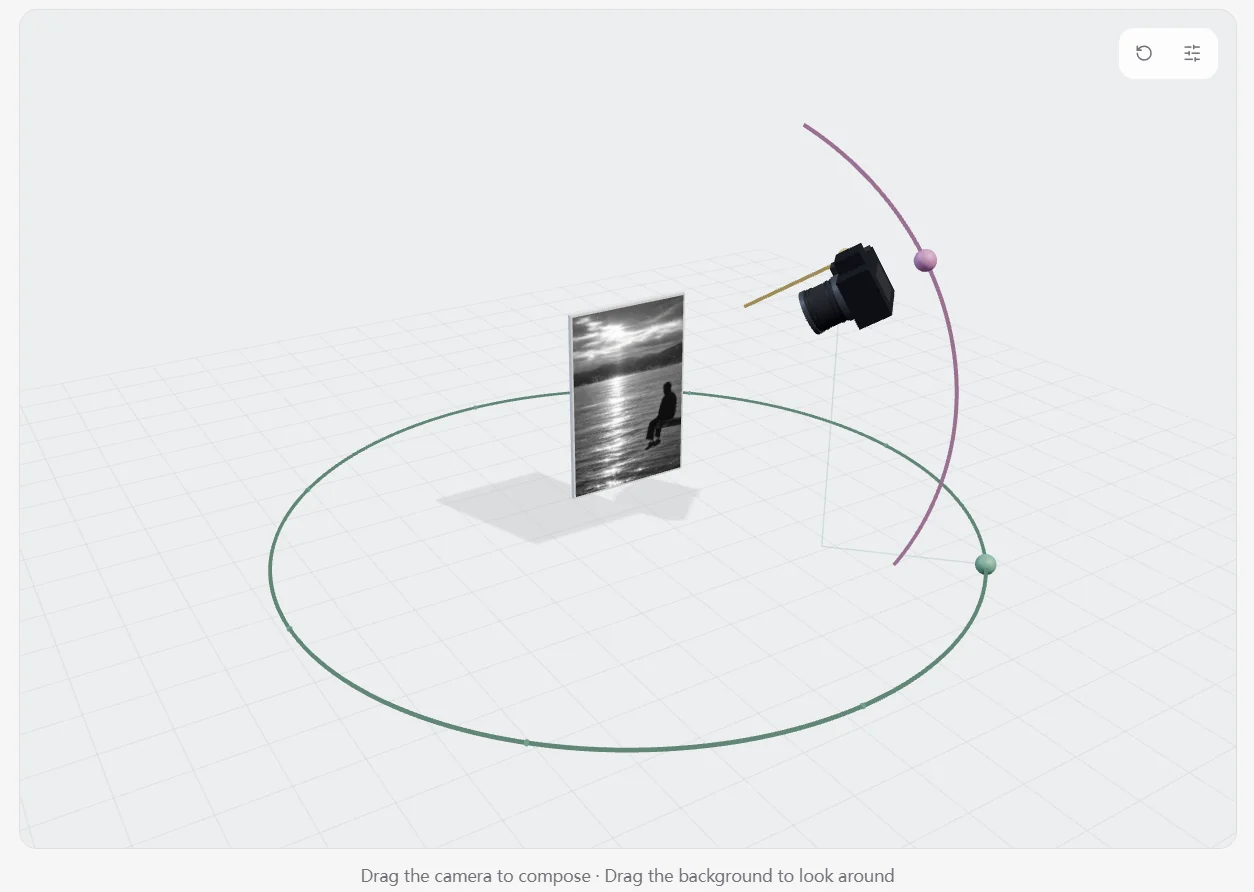
This interface screenshot shows the camera position selector. Dragging changes your selected position; it does not preview the generated image. The image in the scene is the source photo, not a verified before-and-after example.
How to change the camera angle of an image
1. Upload a photo
Sign in and choose a JPG, PNG or WebP image on this page. The upload is saved as your own source image, so the angle tool can use it without a separate Chat message.
2. Choose your camera position
Move the camera around the image, or use the position controls. Choose from eight directions, four height settings and three framing options: close, medium and wide.
3. Review the quote and generate
Check the displayed credit cost, then start generation. Compare the new image with the original: inspect logo spelling and placement, silhouette and proportions, and the number of small parts. Download a result you accept or use it as the source for another view. Your result is also saved in Library.
Uploading a photo and selecting a position use no generation credits. Each AI generation uses the current credit quote shown before you submit; check it again for another view. See current plans and credit packs
Direction, height and framing
Look from another side
Direction is measured around the subject's front: Front is 0°, Front right is 45° and Right is 90°. Choose a direction to request a front, three-quarter or side view. Newly visible parts are generated from the source image.
Raise or lower the camera
Choose -30° (Low), 0° (Level), 30° (High) or 60° (High angle). A high-angle setting is not a 90° top-down view. These values select the requested position; they do not guarantee an exact geometric angle in the generated image.
Move closer or wider
Choose close, medium or wide framing. Use a closer composition for a subject study, or a wider view to explore more of the scene.
Starting settings for three camera views
Start with one clear source photo and try the settings below. Generate each view separately, then compare the result with your original before choosing another starting point.
Side view
Choose Right (90°), Level (0°) and Medium framing. This requests a side composition at subject height. Check newly visible surfaces and small details before keeping it.
High-angle view
Choose Front (0°), High (30°) and Wide framing. This requests a raised front viewpoint with more space around the subject. It is a starting point for a high-angle composition, not a strict top-down image.
Low-angle view
Choose Front (0°), Low (-30°) and Medium framing. This requests a lower front viewpoint. Compare the subject's proportions and newly generated underside details with the source.
What an AI perspective changer can—and cannot—show
This AI perspective changer generates a new image from one view. It estimates surfaces that the original never showed, so faces, clothing, lettering and object details may change. The camera scene helps you select a position; it is not a measured 3D reconstruction or a live preview of the final image.
Rotating an image 90 degrees turns the existing pixels; perspective correction straightens lines. This tool generates a different imagined view, including details the original photograph never captured.
Camera angle questions
Does dragging the camera generate a new image immediately?
No. Dragging only selects a position. The new view starts generating after you review the quote and select Generate.
Can I change the angle of an uploaded photo?
Yes. Sign in and upload a JPG, PNG or WebP image here. Swap Hairstyle saves it as your own source before you choose a new angle. The tool cannot use an arbitrary external image URL.
Is changing the camera angle free?
AI viewpoint generation uses credits. Check the current quote before generating; uploading a photo or choosing a position does not use generation credits.
Will a new angle preserve every detail?
No. AI must infer parts hidden in the original image. Identity, text, clothing and product geometry can change. Compare the output with your source and keep the original.
Can I download the result or change its angle again?
Yes. A successful result is saved as a new image in Library. You can download it or select it as the source for another camera-angle generation.
Is this the same as rotating or straightening a photo?
No. Rotation and perspective correction rearrange existing pixels. An AI camera angle changer generates a new view of the subject and estimates details hidden in the original.
How do I make side and high-angle views from one photo?
Sign in and upload one JPG, PNG or WebP image here. For a side view, choose Right (90°), Level (0°) and Medium. For a high-angle view, start with Front (0°), High (30°) and Wide. Review the credit quote before generating each view, then compare the output with the original. These settings request a composition; they do not guarantee exact geometry or a 90° top-down view.
What should I check in a new product-photo angle?
Compare logo spelling, letter shapes and placement; the silhouette, thickness and proportions; and the number and position of buttons, holes, seams or other small parts. Check colors and materials against the original too. A front photo does not confirm hidden side, top or back surfaces. Verify those areas with real photos of the product before using the generated view to show factual product details; the tool does not verify them for you.